
GETTING STARTED
Let Emerald Intel keep watch on the lists and searches that matter to you.
What you'll learn
How alerts work with Saved Lists and Saved Searches, how often they can be delivered, and what you'll see when Emerald Intel finds a change.
What can have an alert?
Email alerts can be created for both:
- Saved Lists: a specific set of records you've chosen.
- Saved Searches: saved criteria that Emerald Intel reruns against the current database.
Choose how often you want updates
Alerts can be scheduled:
- Daily
- Weekly
- Monthly
Create and manage alerts
| 1 | Save a List or Search Create the Saved List or Saved Search you want Emerald Intel to monitor. |
| 2 | Open Lists & Alerts Use Lists & Alerts in the top navigation to manage your saved items and alerts. |
| 3 | Set the alert frequency Choose daily, weekly or monthly based on how closely you want to follow changes. |
| 4 | Watch your inbox When changes are found, Emerald Intel sends an email summarizing the update and showing affected records. |
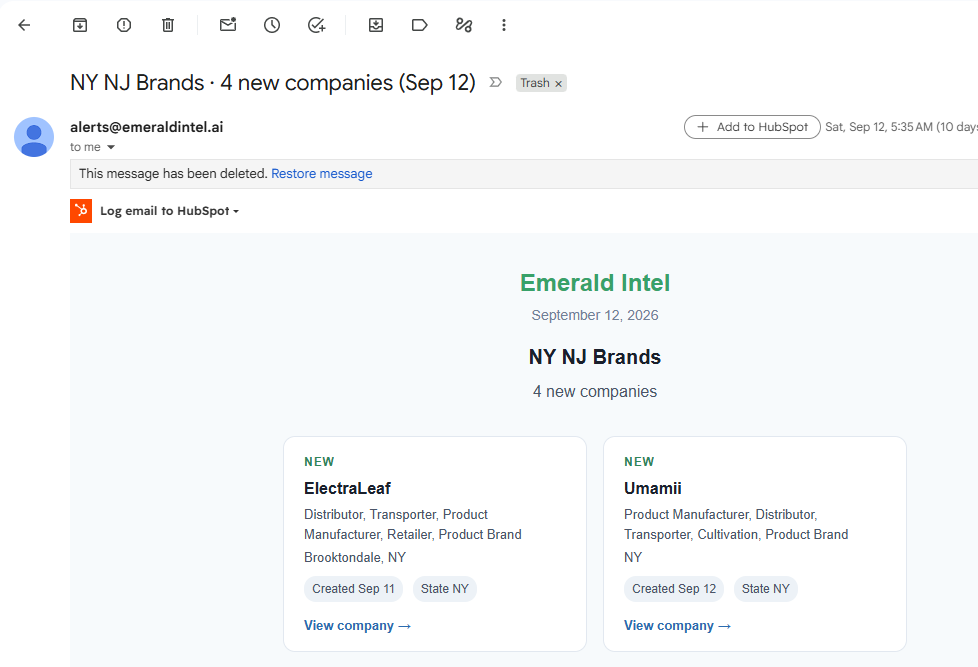
Example Emerald Intel alert email showing new companies found for a saved item.
What the alert email shows
The email identifies the Saved List or Saved Search, summarizes the change, and displays affected records. For example, an alert may report new companies and show the company name, business type, location, creation date and a link to view the company.
Emerald Tip
Use alerts for searches or lists you care about over time. They can help you spot new records and changes without manually rerunning the same research every day.
Still need help?
We're here to help. Contact the Emerald Intel Client Success team at support@emeraldintel.ai.