
Keep the specific companies, locations, licenses or contacts you want to work with together.
|
What you'll learn How Saved Lists differ from Saved Searches, how to select records and add them to a new or existing list, and where to manage your lists. |
Saved Lists vs. Saved Searches
|
Saved List |
Saved Search |
|
A saved set of specific records you select. |
A saved set of search criteria that reruns when you open it. |
|
Best when you want to keep working with the same records. |
Best when you want to keep finding records that meet the same criteria over time. |
|
Good to know Lists are record-type specific. A single list does not mix companies, contacts, licenses or other record types. |
Create or add to a Saved List
|
1 |
Run your search Use Advanced Search and filters to find the records you want. |
|
2 |
Select the records Check the box beside each record you want to add. The action bar will show how many records are selected. |
|
3 |
Choose Add Selection to List Use the action bar at the bottom of the results. |
|
4 |
Create a new list or choose an existing list Name a new list, or add the selected records to a list you've already created. |
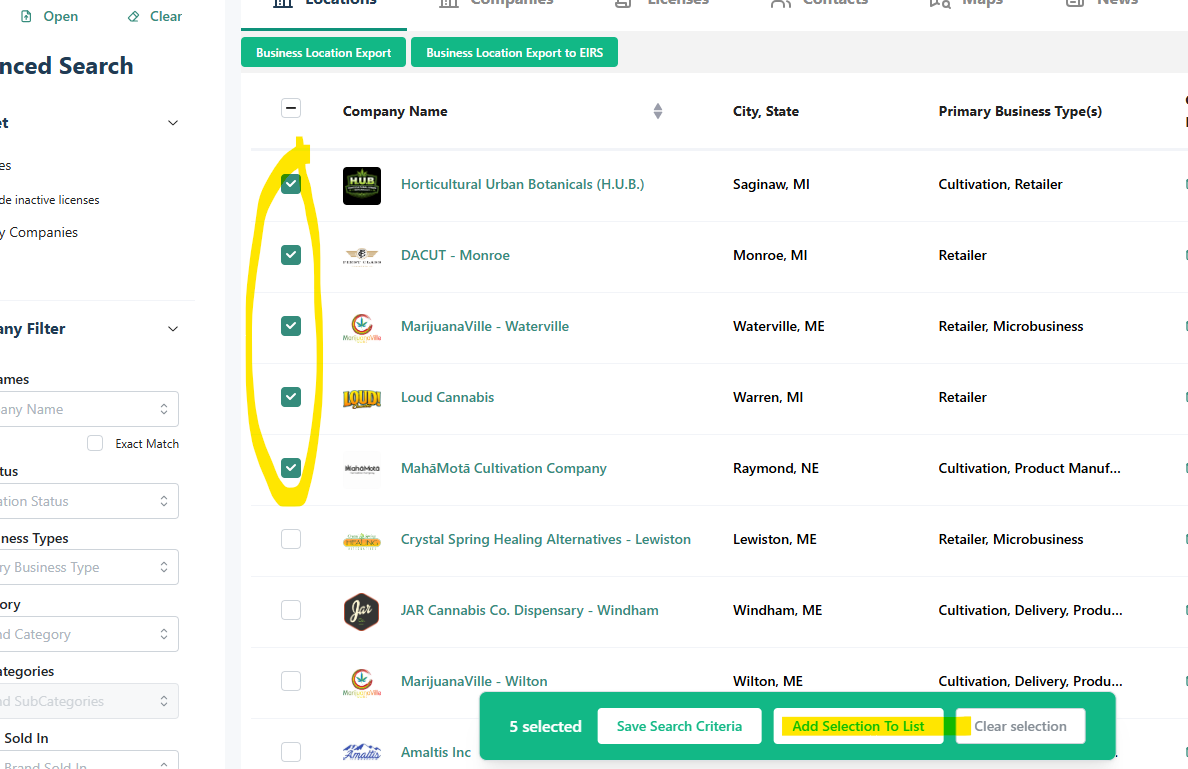
Select individual records, then choose Add Selection to List.
Manage your lists
Open Lists & Alerts from the top navigation to access and manage your Saved Lists and Saved Searches. You can continue adding records to an existing Saved List as your research develops.
|
Emerald Tip Use clear list names that tell you what the records have in common, such as “NY NJ Brands” or “Maryland Retail Prospects.” This makes lists easier to recognize later. |
Stay informed with alerts
Saved Lists can also have email alerts. Choose a daily, weekly or monthly schedule to receive updates when records on the list change.
Related resources
→ Searching & Filtering in Emerald Intel
→ Creating Email Alerts
→ Exporting Data from Emerald Intel
|
Still need help? We're here to help. Contact the Emerald Intel Client Success team at support@emeraldintel.ai. |