
Send Emerald Intel a correction or change directly from a license record.
|
What you'll learn How to report a license-data change, explain what should be reviewed and attach supporting documentation when available. |
Report an update from a license record
|
1 |
Open the license record Navigate to the license that contains information you believe should be reviewed. |
|
2 |
Select Report an update Choose Report an update within the license record. |
|
3 |
Choose the type of change Select Status, Expiration date, Company name and DBA, or Other. |
|
4 |
Describe the update Use Update details to explain what should be reviewed and why. |
|
5 |
Attach supporting documents if available Supporting documents are optional. The form notes that files can be up to 50MB each. |
|
6 |
Submit the update Send the update to Emerald Intel for review. |
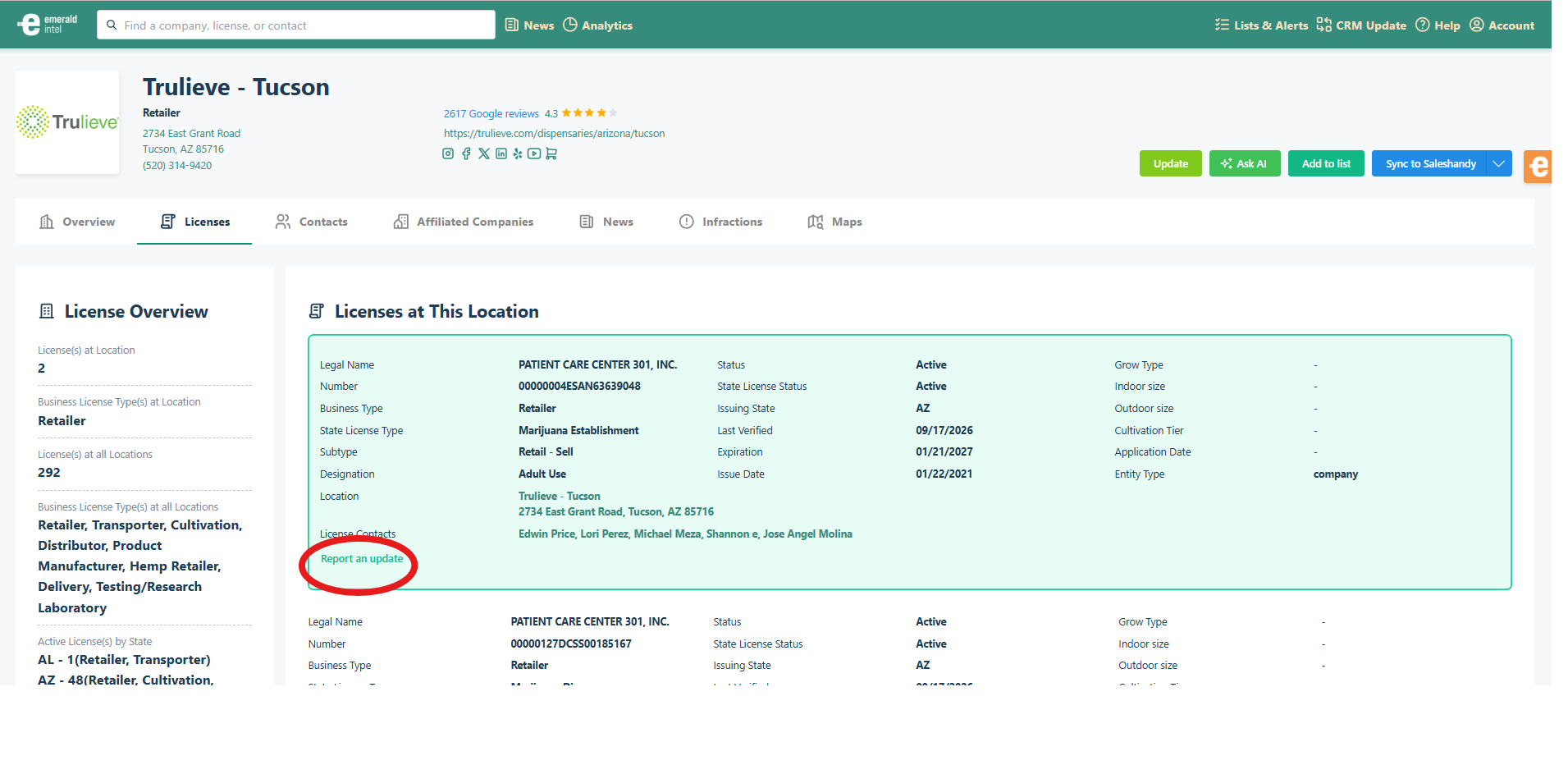
The Report an update link appears within the license record.
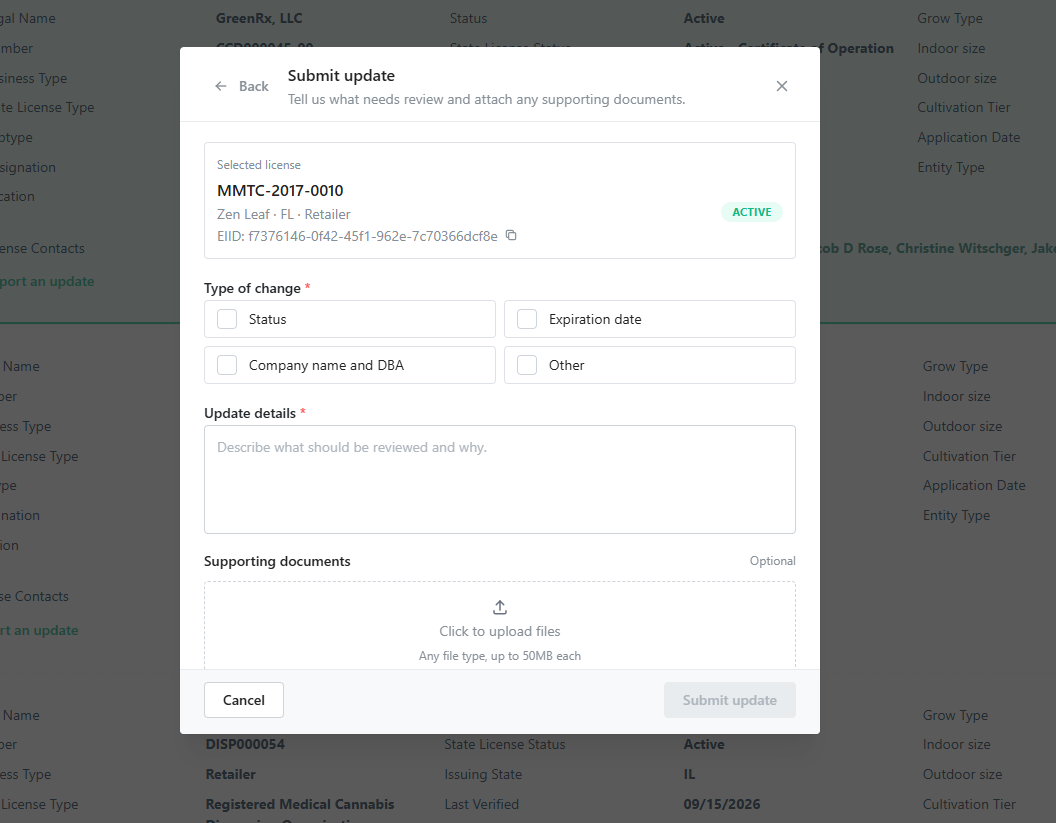
The Submit update form lets you identify the change, explain it and attach supporting documents.
|
Another way to send a data update You can also click the ? Help button at the top-right of Emerald Intel and email the support team. |
Related resources
→ Searching & Filtering in Emerald Intel
→ Quick Answers to Common Questions
|
Still need help? We're here to help. Contact the Emerald Intel Client Success team at support@emeraldintel.ai. |