
Find the companies, locations, licenses and contacts that matter to you.
|
What you'll learn How to choose the data you want to search, apply filters, explore results across record types, and save useful search criteria for later. |
How to search & filter
|
1 |
Choose your dataset From Advanced Search, choose the data you want included. Available datasets include Licenses, Ancillary Companies and Brands. |
|
2 |
Add your filters Use Company Filter, License Filter and Contact Filter to narrow your results. You can combine multiple filters to create a more targeted search. |
|
3 |
Explore your results Use the tabs above the results to move between Locations, Companies, Licenses, Contacts, Maps and News. Your search criteria stay in place as you change views. |
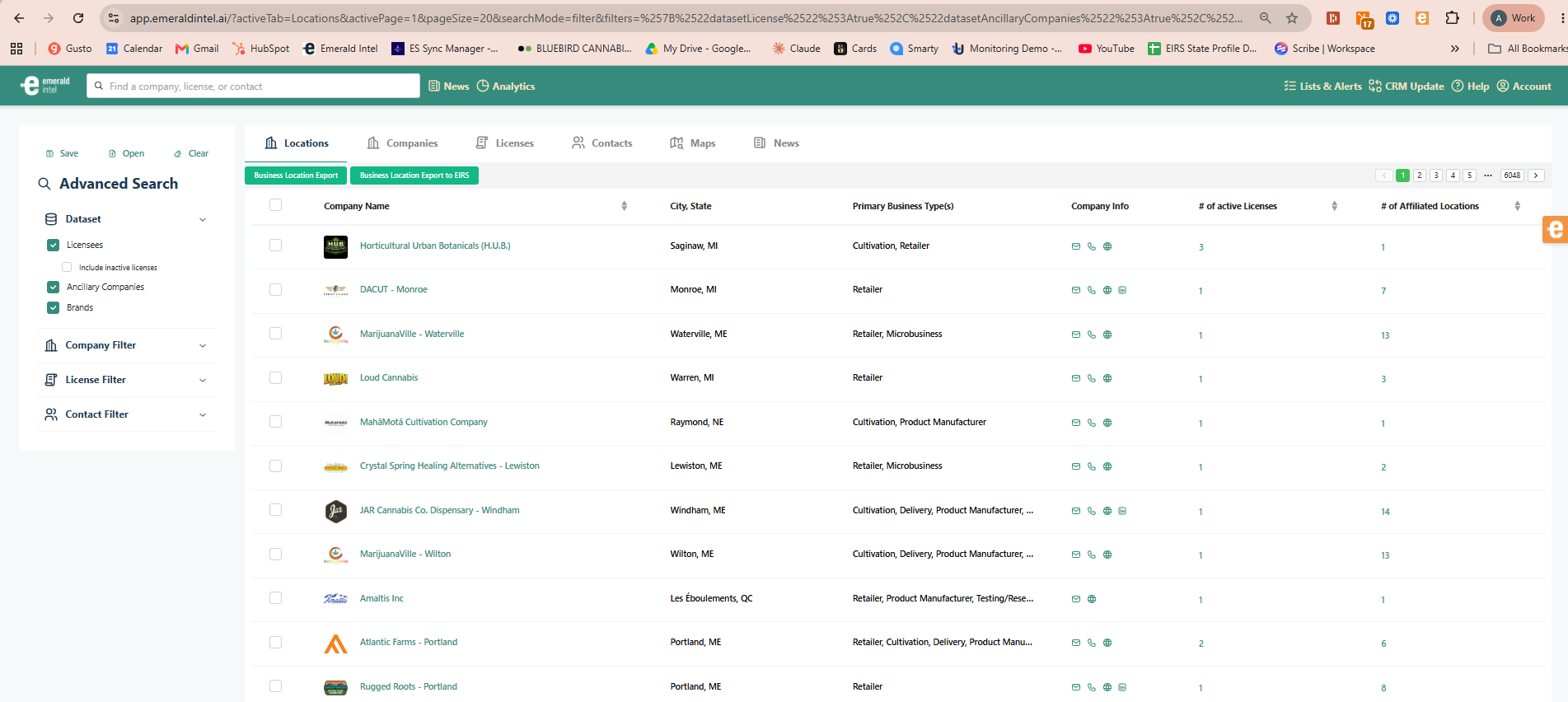
Advanced Search and results in Emerald Intel.
Locations vs. Companies
A Location and a Company represent two different levels of a business relationship in Emerald Intel.
|
Think about Starbucks A Location is like an individual Starbucks on a street corner. A Company is like the Starbucks headquarters in Seattle. This lets you work at either the individual-location level or the broader company level. |
|
Emerald Tip Before building a list or exporting, decide whether you need individual business locations or the companies behind those locations. |
How contacts work
Emerald Intel uses a one-to-many relationship for contacts to prevent unnecessary duplication. If one person is associated with five companies, that person exists once in the contact database and is associated with all five companies.
This becomes especially important when exporting contacts because the Email Export and Direct Mail Export handle those relationships differently.
Save your search for later
If you've built a combination of filters you'll want to use again, select Save to save the search criteria. A Saved Search stores the criteria rather than a fixed set of records. Each time you open it, Emerald Intel reruns those criteria against the current database.
|
Saved Search or Saved List? Use a Saved Search when you want Emerald Intel to rerun the same criteria over time. Use a Saved List when you want to keep a specific set of selected records. |
Search by Grow Environment
The Grow Environment filter can refine license search results by Indoor, Outdoor or Mixed.
Refine contacts by available contact details
Contact searches can be refined based on whether Emerald Intel has an email address or phone number for the contact, helping users focus on contacts they can engage with immediately.
Related resources
→ Creating & Managing Saved Lists
→ Exporting Data from Emerald Intel
→ Creating Email Alerts
|
Still need help? We're here to help. Contact the Emerald Intel Client Success team at support@emeraldintel.ai. |